
FILTRIX Tutorial
How to Use FILTRIX
Learn the complete FILTRIX workflow: create an account, build a trading context, run your first analysis, save it, and test execution.
What You Will Learn
- Create an account and find the main workspace.
- Build a Context Analysis from exact trading filters.
- Read how many matching historical examples FILTRIX found.
- Save useful contexts and test execution rules.
Before You Start
- A ticker or setup idea you want to validate.
- A FILTRIX account. Free accounts can learn the workflow with basic limits.
- A clear question, such as whether similar alerts historically closed green.
Create an account or log in
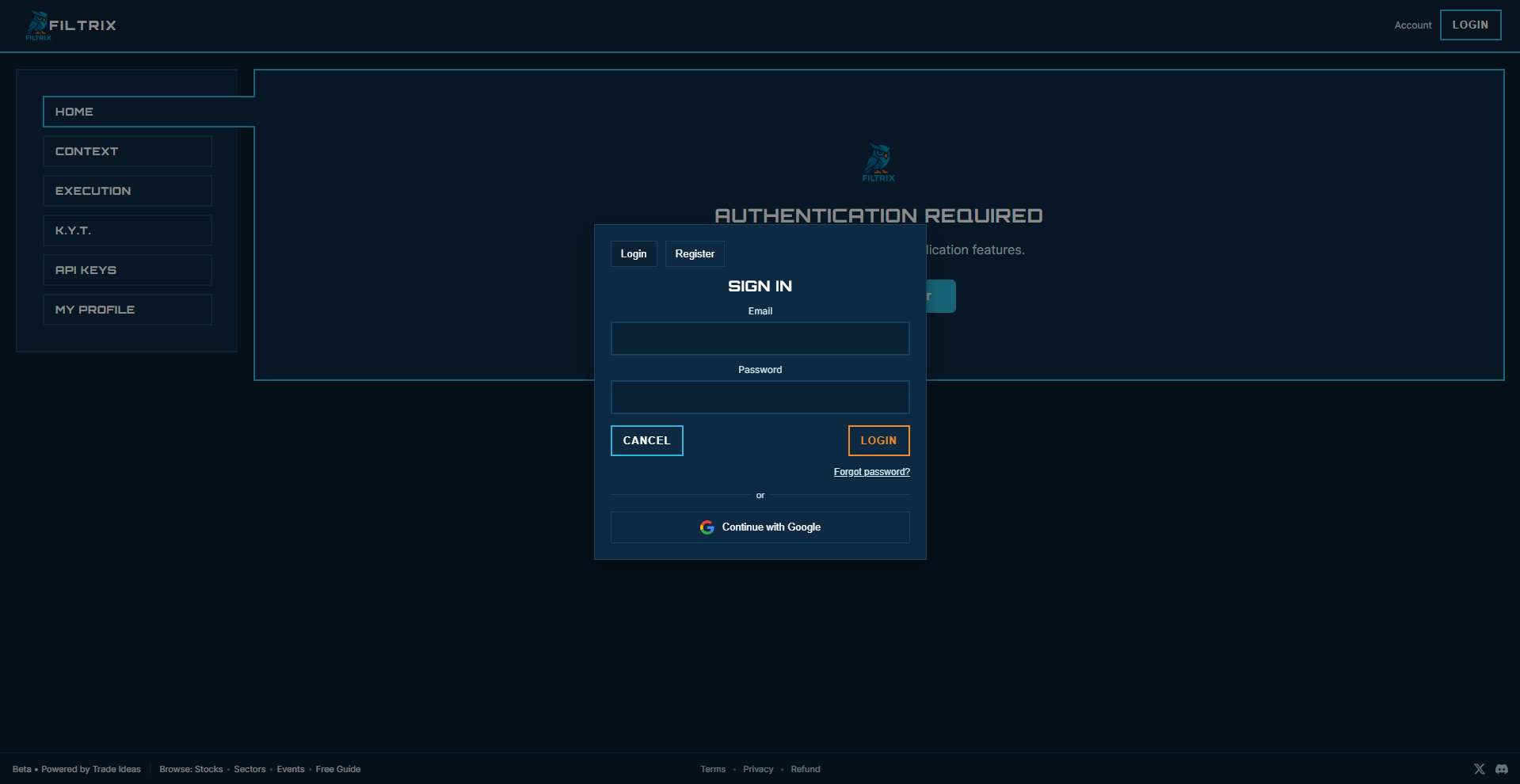
Open FILTRIX and sign in. If this is your first visit, create a free account first. You do not need to configure anything advanced before running your first analysis.
/static/images/tutorials/how-to-use-filtrix/02-auth-screen.png
Open Context Analysis
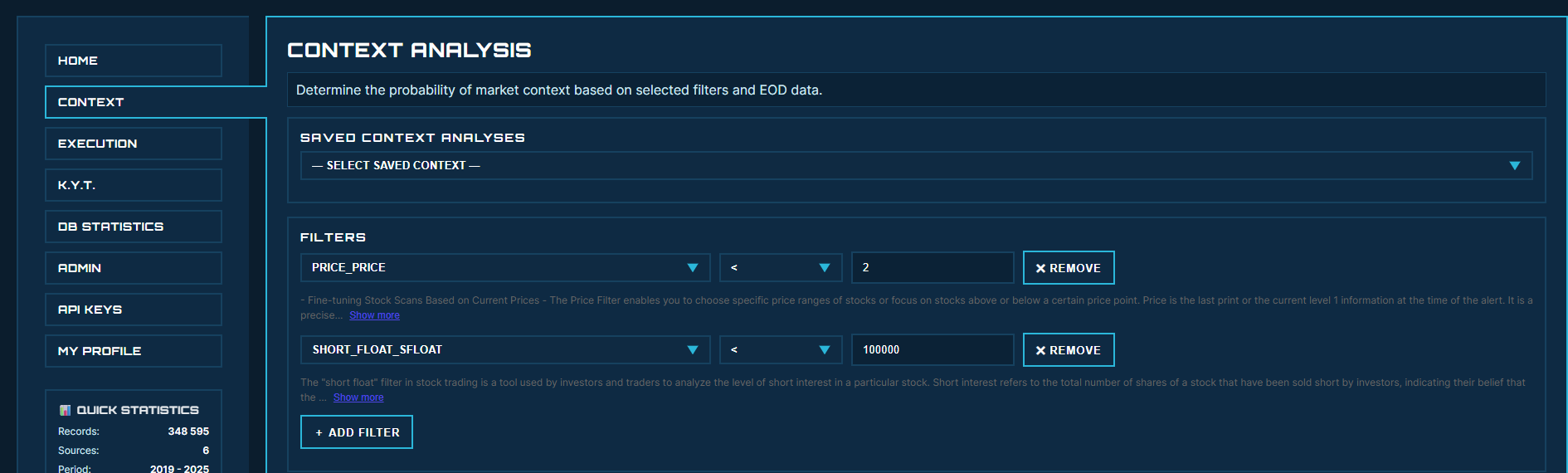
After login, start from the Home page or the left navigation. Context Analysis is where you describe the setup you want to validate against historical Trade-Ideas data.
/static/images/tutorials/how-to-use-filtrix/03-context-analysis-empty.png
Build the exact setup
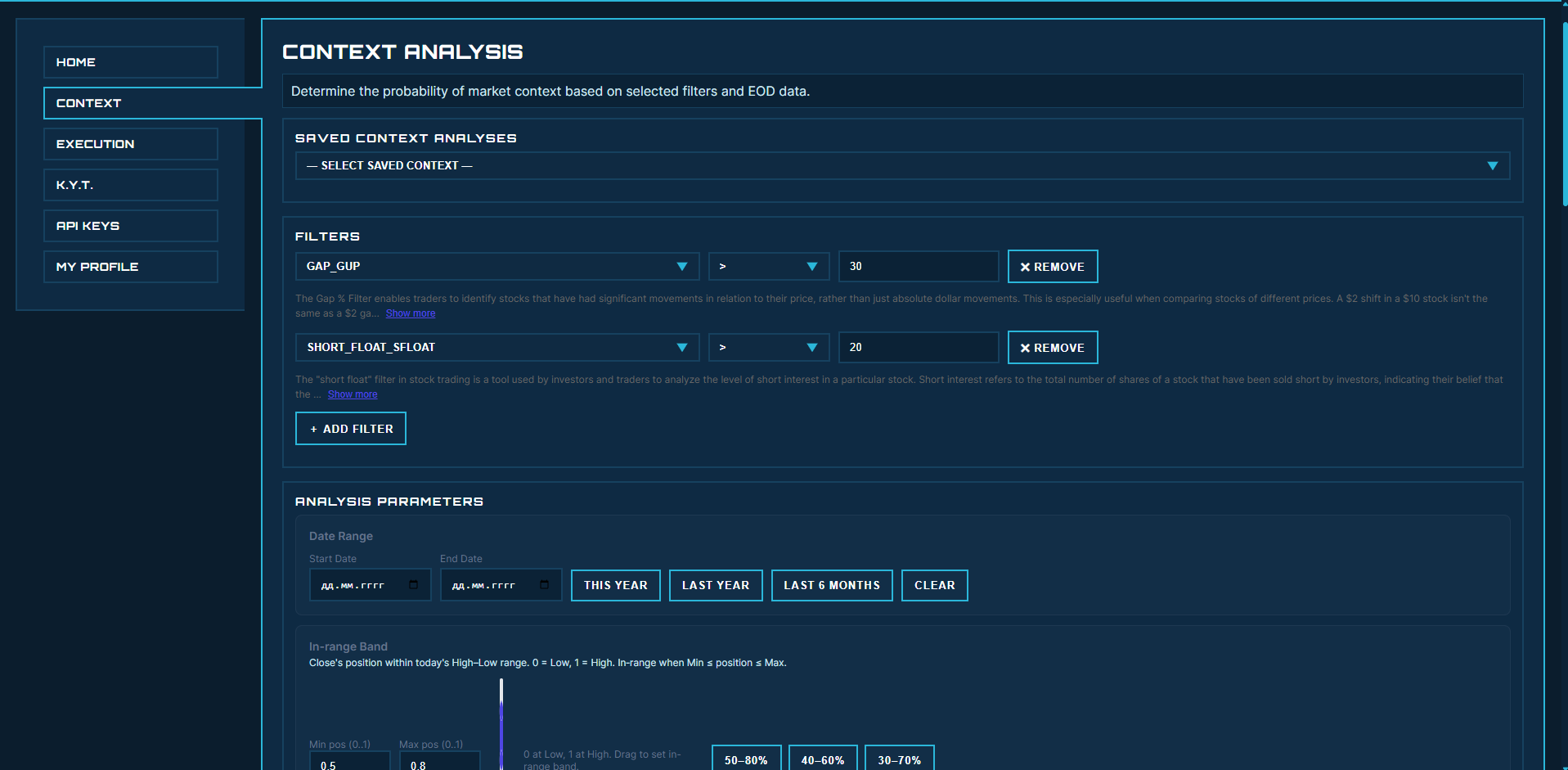
Start with a specific question, then turn it into filters. Good filters describe the actual setup: ticker or sector, gap size, relative volume, float, price, or other conditions that were present when the alert fired.
/static/images/tutorials/how-to-use-filtrix/04-context-filters.png
Run your first analysis
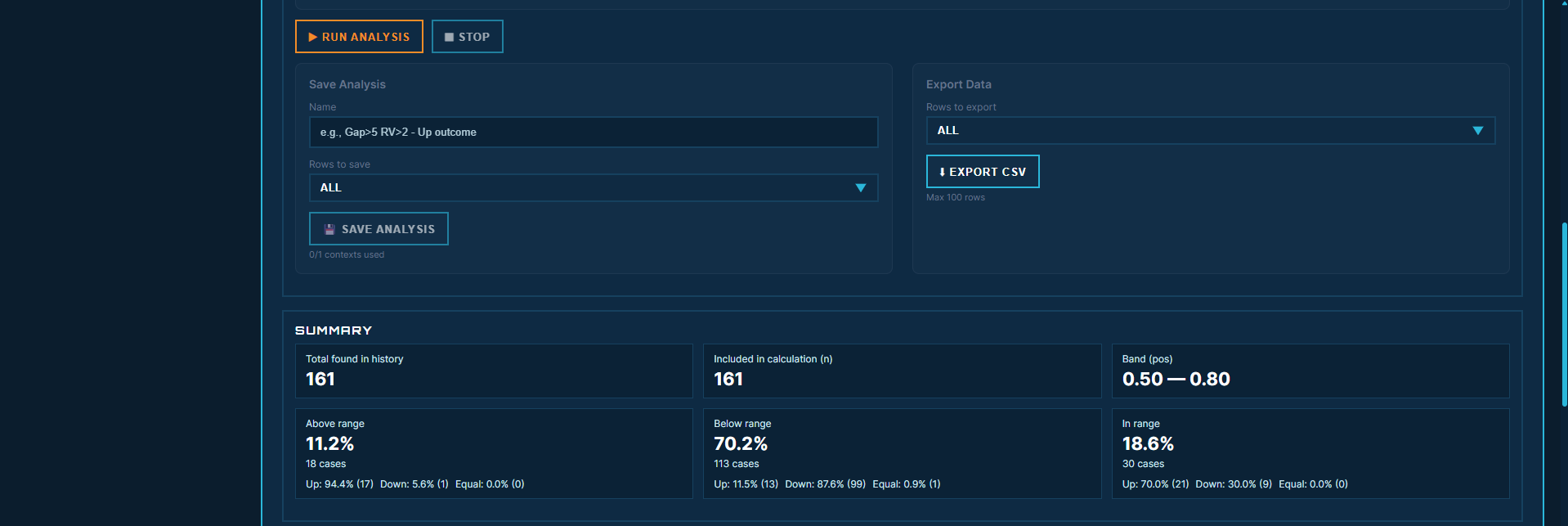
Click Run Analysis and let FILTRIX compare your setup against historical records. When the run finishes, you will see whether similar setups tended to close green or red.
/static/images/tutorials/how-to-use-filtrix/05-running-analysis.png
Read the result before you trust the setup
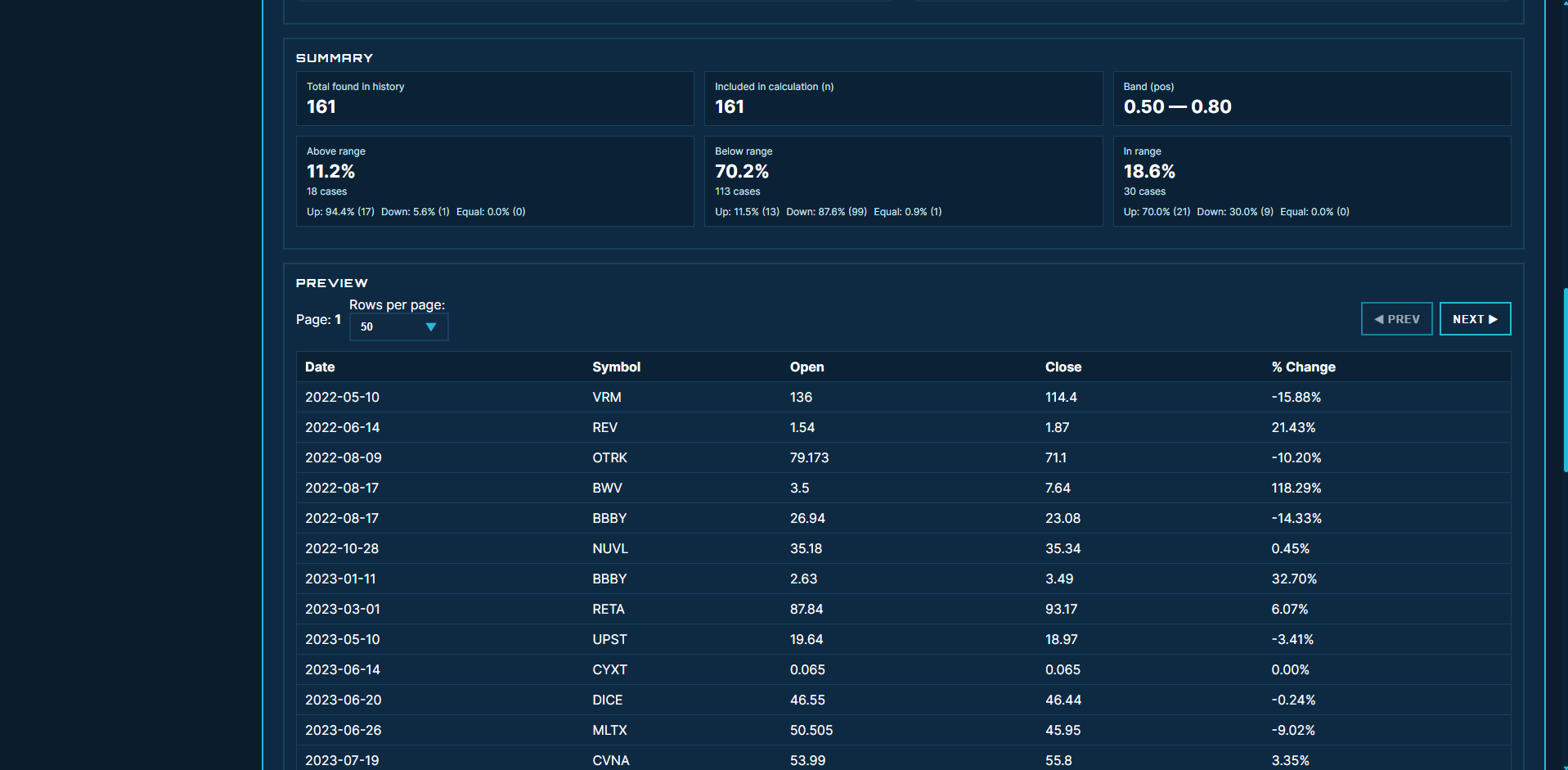
Start with how many matching historical examples FILTRIX found. Then look at where those days closed: above your target range, below it, or inside it. A useful result has enough examples to study further, but it is still not a guarantee for the next alert.
/static/images/tutorials/how-to-use-filtrix/06-context-results.png
Save the context
Save the context when the filters are clear and the result is worth revisiting. Saved contexts let you return to the same setup later and use it inside Execution Analysis.

/static/images/tutorials/how-to-use-filtrix/07-save-context.png
Test execution on the saved context
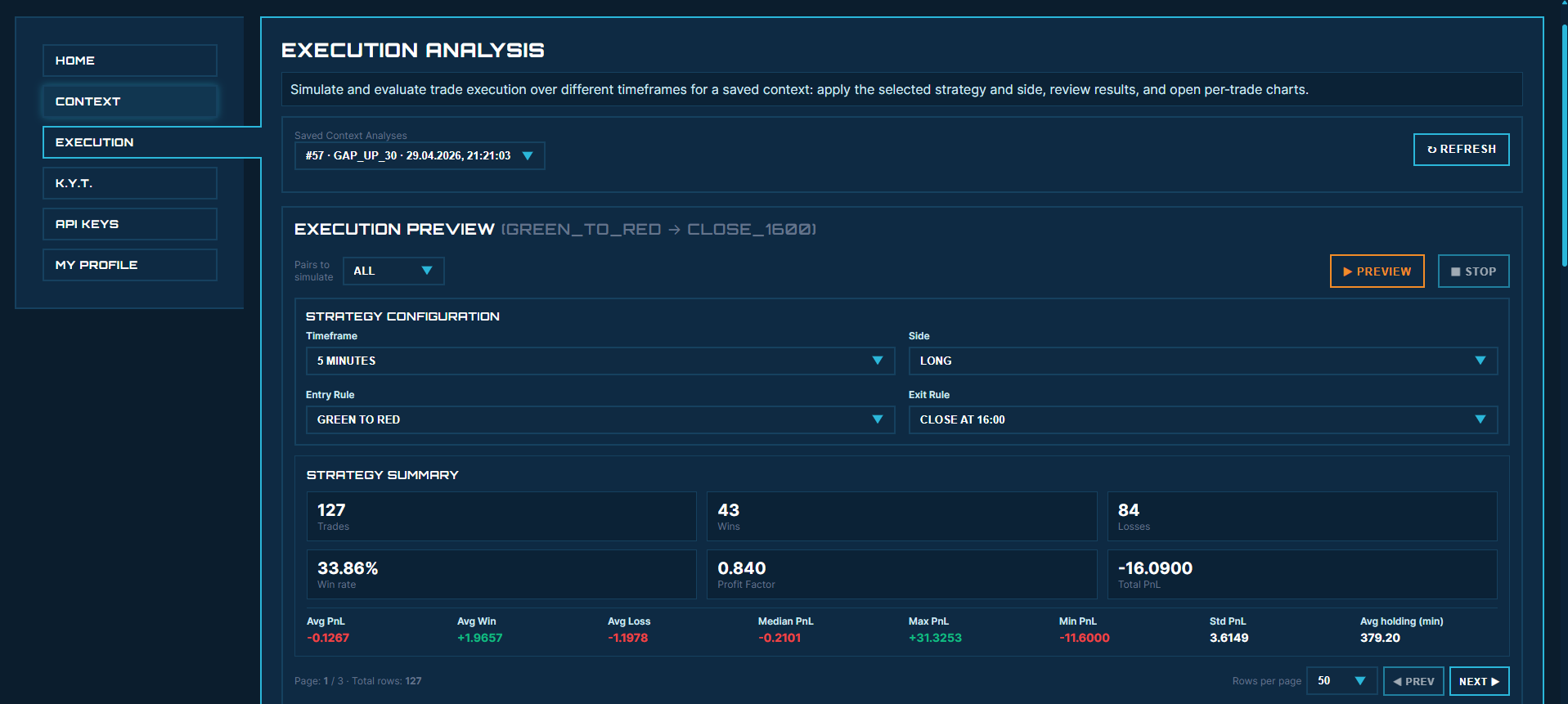
Context Analysis tells you whether the setup has historical support. Execution Analysis tests how a specific entry and exit rule would have behaved on the matching trades.
/static/images/tutorials/how-to-use-filtrix/08-execution-analysis.png
Common Mistakes to Avoid
- Do not treat a tiny sample as proof of edge.
- Do not replace exact filters with a loose story about the setup.
- Do not skip execution testing when the context result looks promising.
- Do not save every experiment. Save only setups you can explain and reuse.
Next Tutorials
How to Validate a Trade-Ideas Alert
Turn any Trade-Ideas alert into measurable filters and check it against 400K+ historical alerts before you trade. Read the alert as data, translate it to FILTRIX filters, and decide whether the setup deserves real risk.
How to Read Context Analysis Results
Learn how to interpret FILTRIX Context Analysis results, including total historical matches, included calculation rows, close-position bands, range buckets, preview rows, and saved contexts.
How to Run Execution Analysis
Use a saved FILTRIX context to preview intraday execution rules: choose pairs, timeframe, side, entry and exit logic, then review the strategy summary and trade charts.
Ready to test the setup?
Open FILTRIX, build the context, and let the data decide before you chase the next alert.
Open FILTRIX